How to set up Color Management

Color management is the one and only way to achieve perfect color reproduction across multiple devices. Color management systems are affordable and pretty easy to use today. But after you created a profile for your device, the job is not done. Setting up your application correctly is essential to exactly know how your pictures will look on the web or in print.
First things first calibrate your devices
To make sure your monitor displays all colors as correctly as possible, you have to calibrate them and create a color profile.
Color management systems
A CMS is the best way to calibrate and profile your display. They will give you the best results and are pretty foolproof. Some of the most common CMS‘ are the Spyder 2, Spyder 3 and the Eye-One.
On a Mac
Mac OS X has a good programm to calibrate your monitor without any expensive measuring device (but not that accurate).
It can be found in Apple > System Preference > Displays > Color > Calibrate….
The program itself is self-explanatory.
Testing images
While it is hard to test your color temperature and white luminance with the naked eye, you can at least check your gamma manually.
Werbefotos.at has some good images to find out and adjust your Gamma.
Remember, that this won’t produce a profile for your monitor!
In order to describe the behavior of the various output devices, they must be compared (calibrated) in relation to a standard color space. Often a step called linearization is performed first, in order to get the most out of limited 8-bit color paths. Instruments used for measuring device colors include colorimeters and spectrophotometers. As an intermediate result, the device gamut is described in the form of scattered measurement data. The measurement data (CGATS) is often not usable immediately. Such data need to be prepared for high speed conversions of the actual image data. The transformation of the scattered measurement data into a more regular form, usable by the application, is called profiling. Profiling is a complex process involving mathematics, intense computation, judgement, testing, and iteration. After the profiling is finished, an idealized color description of the device is created. This description is called a profile.
From Wikipedia
How to setup your operating system
After the calibration your profile should be applied automatically.
Under Mac OS X you can check if everything is set up correctly in Apple > System Preference > Displays > Color > Display Profile.
For Windows user this is a bit more difficult, because Windows itself can’t apply a color profile because Windows can’t really do color management. This makes an additional program necessary which typically comes with every CMS and is installed automatically. Make sure this program is in the autostart.
How to setup Creative Suite
Start Photoshop or any other CS application. Go to Edit > Color Settings….
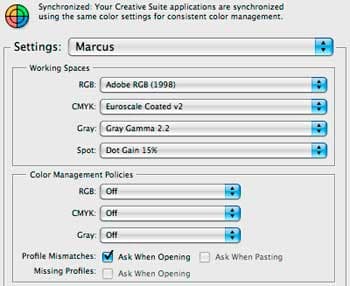
Your settings should look like these on the right.
RGB: If you only work for the web you can choose sRGB, but if your work will probably be printed you should go with Adobe RGB, because it’s the bigger gamut. Never chose your monitor profile (even if many people think, that this is what should be chosen). This wouldn’t make sense, because your monitor profile is already applied by your graphics-card and would be run a second time over your image if you chose that.
CMYK: Choose a standard CMYK Profile like Euroscale Coated v2.
Leave Gray and Spot as they are.
To make shure you always know what’s happening deactivate all Color Management Policies and check Ask When Opening. This means, that always if a picture has no or a different color profile than your working space, you will be asked what to do.
In this case you should either choose to keep the profile or to convert it to your working space (depends on what you want to do). If you have an image from the web with no profile you should assign sRGB, because images on the web are in the majority of cases in sRGB.
Never, ever deactivate or turn off color management! This will screw things completely up!
Save these settings under a name of your choice. To synchronize all CS applications open up Adobe Bridge and go to Edit > Creative Suite Color Settings… look for the profile you just saved and click Apply. Now all your CS applications will work with the same setting.
The “Save for Web”-Problem
Many people have the problem, that their colors change when they use the option “Save for Web”.
In fact they don’t change. They are just not displayed the right way while working in Photoshop.
By default Photoshop applies your working space to your images, which is good for print work, but leads to a difference in color displaying. To make sure Photoshop displays the colors like an application, that don’t color manage (like your browser or your operating system) you have to check View > Proof Setup > Monitor RGB. Furthermore you have to check View > Proof Colors. Make sure this is always checked in every image you are working on (because its deactivated by default).
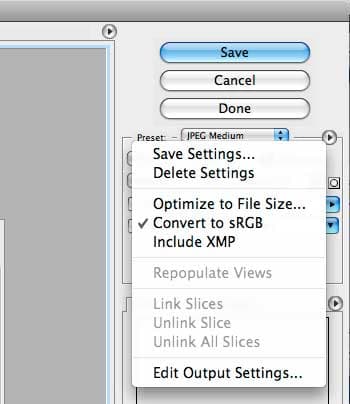
When saving for the web you should also make sure to check Convert to sRGB, especially if you are not working in sRGB.
If you work in Adobe RGB (or an other profile than sRGB) there could be a slight difference in color after Saving For Web because of the difference between Adobe RGB and sRGB. You can check your images by converting them manually to sRGB before saving for the web by clicking on Edit > Convert to Profile… > Profile: sRGB. Make sure you undo this step afterwards or you will keep on working in sRGB.
If you follow these steps you will see your images in Photoshop exactly like in your browser. But now you are color managing to make sure your pictures will also look great in print.
A little bit about me
My name ist Marcus Blättermann.
I’m majoring in communication design and work as a freelancer for illustration, print- & webdesign.
What you should do next
Don’t forget to follow me on Twitter. You should also check out my Portfolio.